How to Use an Image to Text Converter: A Detailed Guide
Let’s start with some facts.
Did you know that approximately 3.2 billion images are shared on the internet every single day? Many of them (e.g., infographics, charts, graphs, etc.) involve the information we often need to use, like making presentations and reports. To use the text inside efficiently, they need it to be extracted, for which they need an image-to-text converter.
Besides the above, another fact is that the world is going paperless and adapting to digitization. According to a study, 50% of businesses now use digital documentation systems. These systems are costly to manage, so around 50% of them are still based on paper systems.
But, but, but,...
A simple yet effective solution is taking over the market for those on a budget. Yes, we are talking about image-to-text converters. Read on to learn about an image-to-text converter and how to use it.
So, What Actually is an Image to Text Converter?
An image to text converter, also called an OCR converter or image text extractor. These are specialized tools capable of extracting text embedded inside an image.
Most of the work of an imagetotextconverter.net is powered by OCR (Optical Character Recognition) technology. This technology can detect readable characters (even in micro format) and human writing. After detecting it, process the text and present it digitally.
Modern image-to-text converter tools integrated with the latest technology can convert both machine-written and handwritten texts. Our image converter tool is one of the best examples of such a tool.
It uses advanced AI-driven technology, including intelligent character recognition (ICR) for identifying languages or handwriting. This helps in providing highly accurate results even for images that are blurry (to some extent).
When and Why You Might Need to Use It?
There are many situations when you might use a photo-to-text converter. Below are some of the most common scenarios:
Digitizing Printed Documents
As we mentioned at the start, the world is going paperless and adapting to digitization.
Why so?
They affect the environment, create clutter, and are challenging to manage. By using an image to text converter you can transform your paper-based documents into digital formats that are easy to manage.
This is especially beneficial for businesses on a budget wanting to digitize their documents or students looking to convert handwritten notes online into (editable) digital form. Such documents are easy to organize, retrieve, and share.
Making Printed Documents Editable
Printed or scanned documents are a crucial asset of businesses working on traditional models. Sometimes, they need to edit such documents.
To do that, the old school practice was manually typing all the documents from scratch. That requires both time and effort and is also prone to human errors.
That is where you can use an image to text converter now. Using them, you can turn a printed or scanned paper into editable text within seconds.
Copying Text from Screenshots or Images
Images on social media are a valuable source of information and fun, e.g., quotes or instructions. Sometimes we save them by downloading, and sometimes we take a screenshot.
However, when sharing information as text on social media platforms, traditionally, we type it manually or share the image as it is.
But using an image-to-text converter, you can copy the text from that image and paste it directly where you want to share it. This is especially beneficial for social media content creators, eliminating the hassle of manual typing and errors.
Making Microtexts Readable
Sometimes we come across papers having microtext that is not easy to read. An example of such text is written on instrument manuals or patient information leaflets (PIL) inside medicine packaging.
You can transform such microtexts into a readable size by taking their picture and converting it using an image to text converter tool.
Steps for Using An Image to Text Converter
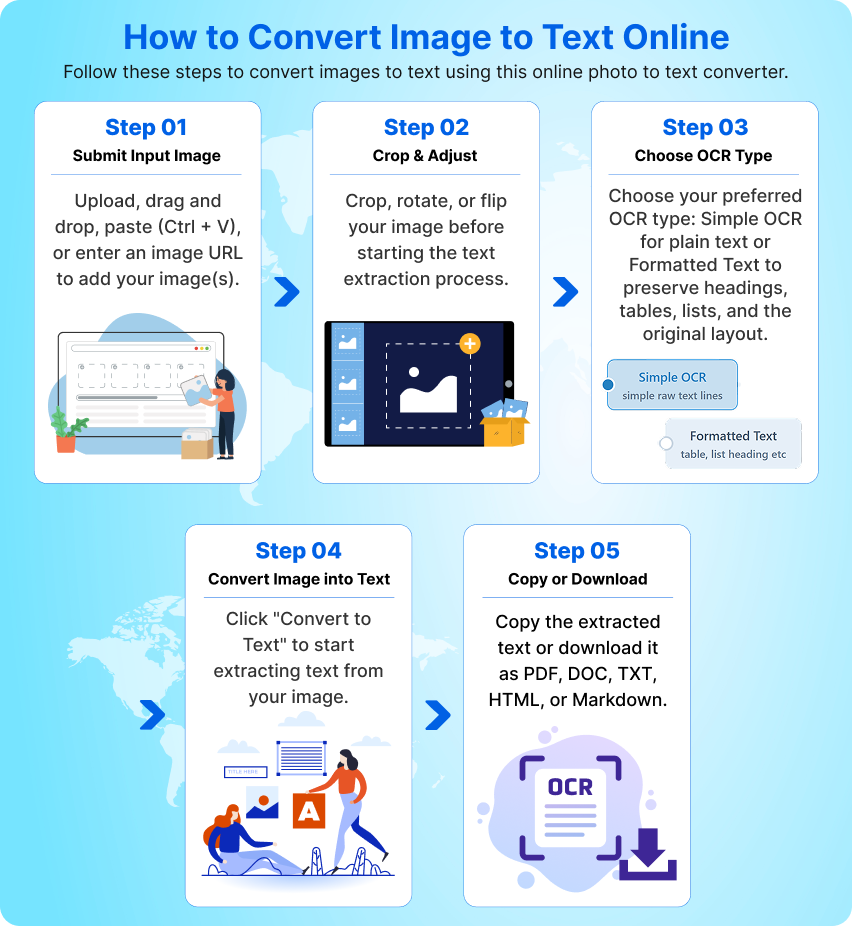
Below, we will provide a step-by-step demonstration of how to use an image to text converter. For our demonstration, we will be using our own tool Imagetotextconverter.net, which is free to use and provides highly accurate results.
Step 1: Submit Images to the Tool
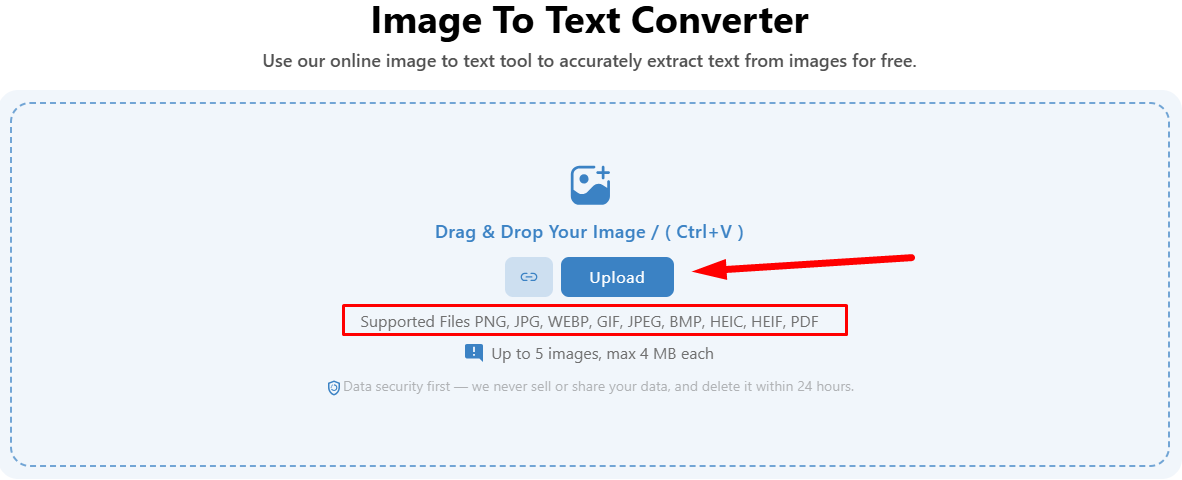
The first step of using an image to text converter is gathering images in the correct file format. Regarding our tool, it supports multiple file types:
- PNG
- JPG
- WEBP
- GIF
- JPEG
Next, ensure the image size does not exceed the tool’s uploading limit. Imagetotextconverter.net supports a maximum of 4MB image size (individually).
Once you have your images in the correct format and size, next comes uploading them to the tool. Regarding uploading, there can be various methods (varies with the tool). Our tool lets users submit their images using four methods:
- Manual uploading (for this, click on the “Upload” button in green).
- URL submission (in case you want to extract text from images available online, but it is limited to one URL at a time).
- Drag and drop method.
- Copy-paste method.
We will upload images of some research papers involving microtexts to demonstrate it to you.
See the above image for yourself; we uploaded three images simultaneously. However, you can upload up to five on Imagetotextconverter.net (also varies with the tool).
Step 2: Make Adjustments (Optional)
Our tool also offers some adjustment features, making it unique from others in the market. Using these features, you can adjust your images by clicking on the crop icon on the right of each.
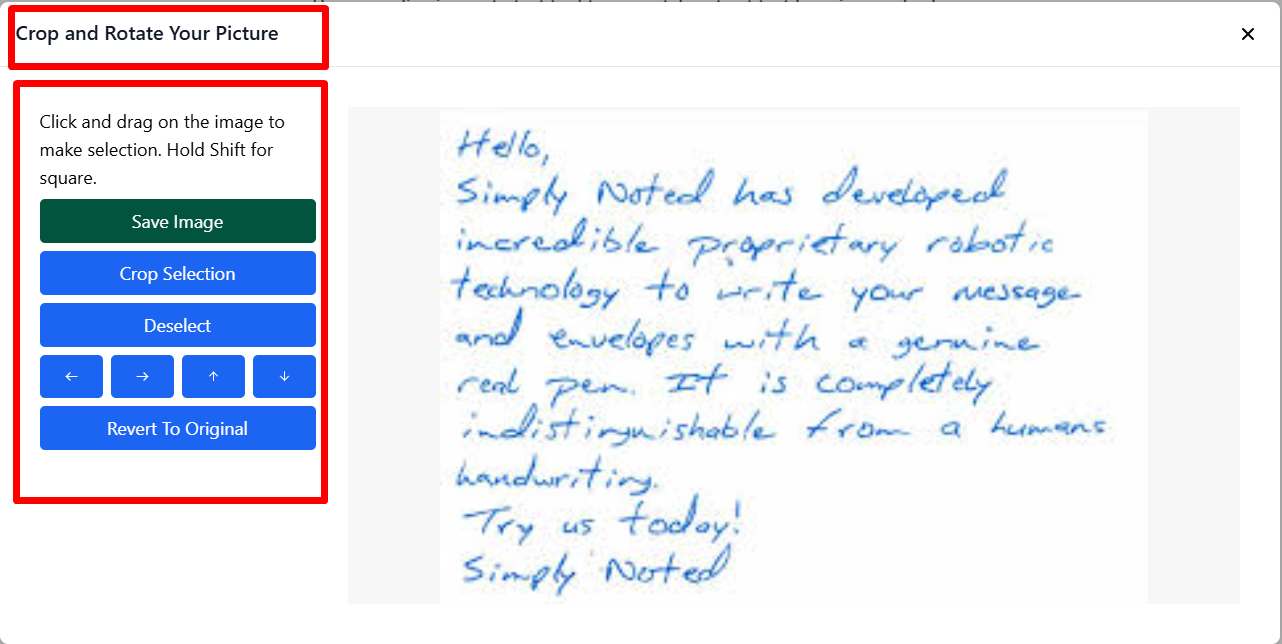
Why so?
To get maximum accuracy in the output, it is especially beneficial for images involving unnecessary texts or flipped in the opposite direction.
Below are the adjustment features Imagetotextconverter.net is offering at the time.
- Cropping
- Rotation
- Flipping
- Zoom in and out
** If you make any image adjustments, don’t forget to click the save button.
Step 3: Choose OCR Type
Select Simple OCR for plain text or Formatted OCR to preserve headings, tables, lists, and the original text structure from the image.
Step 4: Convert to Text
Once you have uploaded all the images and no adjustments are pending, move toward extracting the text. To do this, click the “Convert to Text” button at the bottom of the toolbox.
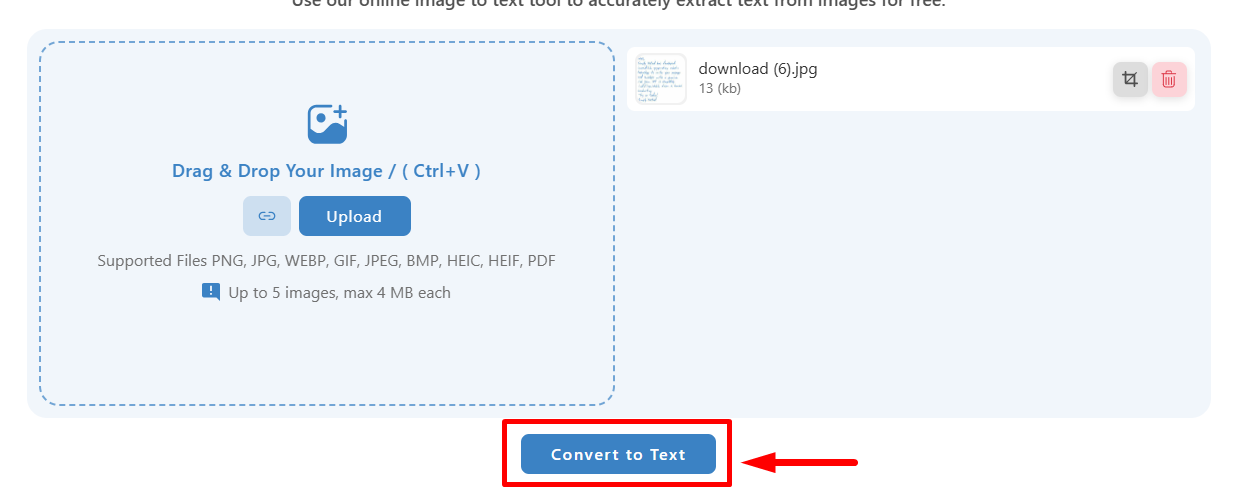
After clicking, just let the tool process your images and wait for the results to appear. It is just a matter of seconds.
Step 5: Save the Text
Once the conversion of images is completed, the results will appear on your screen, as in the screenshot we shared below.
Now comes the most crucial part: saving the text, which varies from tool to tool. Regarding our tool, Imagetotextconverter.net, you get multiple options for saving text.
One option is copying the text and manually saving it on your device by pasting it into a file. To copy, click the icon on the right side of each image. You can also copy by manually selecting the text from the result box.
The other option is to download the extracted text as a file. Currently, our tool offers you the option to download the text in three different file types, including:
- Doc
- TXT
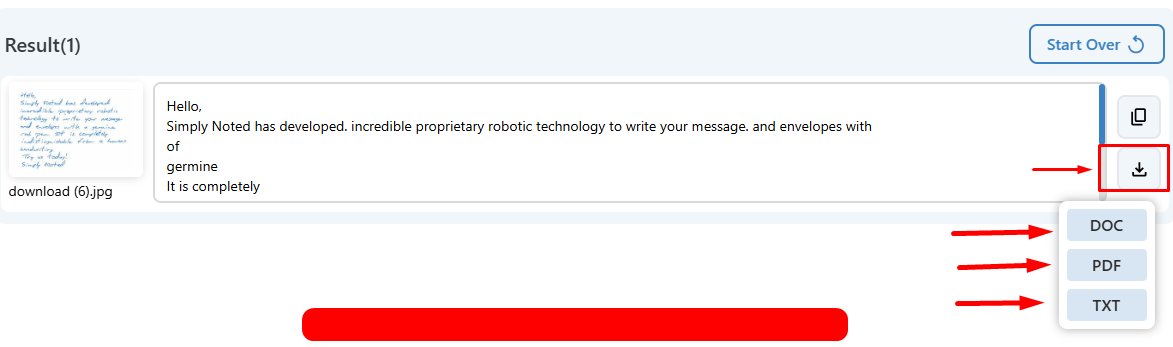
To download, click on the icon on the right side of each image and then click on your desired format. Your image will be downloaded automatically.
Furthermore, if you convert multiple images like we did, you can download all of them at once (as a single file).
To do this, click the button at the top bar of the result box and choose your desired format from the drop-down.
Within seconds, you will get the extracted text file in your download folder. We downloaded the result for the images uploaded to the tool as a DOC file for demonstration purposes. Here’s what it looks like:
See for yourself in the above image, the tool has successfully extracted the microtexts and provided them to us in an editable format with a readable font size.
This is how you use an image to text converter. For your quick review, the process is quick, simple, and involves only five steps:
- Submit Images
- Make Adjustments
- Choose OCR Type
- Convert to Text
- Save the Text
That’s it.
Why Use Imagetotextconverter.net?
So you have learned an image-to-text converter and how to use it. Now let’s have a little talk about why you should use Imagetotextconverter.net. Here are some of the common reasons that make it stand out among others:
- Completely free to use with no daily cap.
- It supports multiple image file formats, as mentioned earlier.
- Let users convert a batch of images (up to five images at a time.
- Can process and extract text from the photos that are publicly available online.
- Let you make adjustments (cropping, rotating, flipping) to the pictures before starting the conversion.
- It is multilingual and is available in 10+ languages.
- Offers multiple file types for download, i.e., DOC, PDF, and TXT.
- Highly compatible across devices, i.e., desktops, smartphones, tablets.
Final Talk
An image-to-text converter is reliable for extracting text from an image or turning printed documents into editable digital formats. In this blog post above, we have explained how you can use an image to text converter. The steps are somewhat similar to many of the tools, but regarding features, Imagetotextconverter.net stands out in many ways.
If you need to convert any image into a digital format or just want to copy the text from it, try our tool and see the magic. We bet you’ll not regret it.