How to Do a Reverse Image Search?

Images, we come across many of them online. Some are memes on social media, while others are people who have recently gone viral. Many of the times, it is a dress or another product that you found attractive, but you don’t know where it came from.
Well, in this era of technology, there is no need to make guesses. You can easily trace and find where that image comes from and find more similar variants of it. And the technology that helps you do this is reverse image search.
Stick with us to learn how to do a reverse image search on Google and other search engines, both on desktop and mobile.
What is Reverse Image Search?
Reverse image search is a popular image search technique that uses Content-Based Image Retrieval (CBIR) technology. It lets you search the internet using an image as a query. That image can be of a person, a product, or a digital illustration.
Reverse image search provides you with exact and similar images on the internet, along with the websites that host them. Primarily, this image search technique helps you:
- Locate the source of an image
- Find duplicate or similar images
- Search for a product using its picture
- Find a person online from an image
How does Reverse Image Search work?
Reverse image search works by using an image file or its URL instead of text or keywords. You provide an image, and the reverse image search engine compares it with thousands of images indexed on the internet. It matches and locates the most similar and identical images and web pages published online.
In case you provide an image and reverse image search comes up with no resutls that means your provided photo is not available on the internet or is not indexed right now.
Also, if you provided a photo published on an online platform but set to private, reverse image search cannot locate it for you. For example, if you search for a picture from a private social media account, reverse image search cannot locate that photo for you. However, it might show you similar-looking images.
How to Do a Reverse Image Search?
There are various ways to perform an image reverse search online. You can use an image search tool that performs a reverse search across different image search engines. Alternatively, you can use mobile apps like Google Lens or use Lens in the browser to do a reverse image search online.
Additionally, Bing images and Yandex images now also allow you to perform reverse image searches online. You can use any of them to locate a picture or find similar images online.
Easy Way to Do Reverse Image Search Online
The easiest way to perform a reverse image search online is by using a dedicated utility.
- Open a reverse image search tool.
- Bring the image you want to search into the tool, or add the image's URL if it is publicly available online.
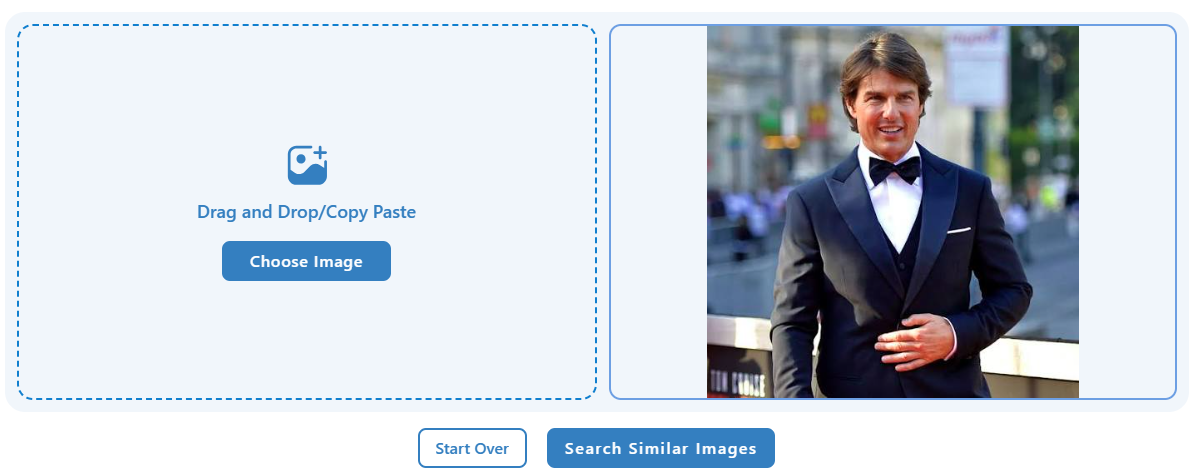
- After uploading the image, click ‘Search Similar Images’.
- Choose an image search engine among the available options (Google, Bing, etc).
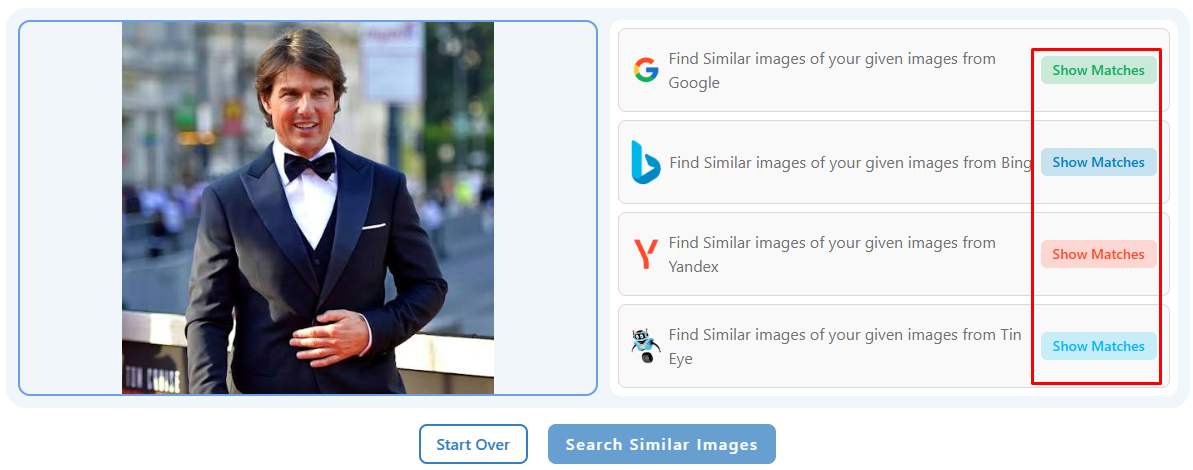
- The tool will take you to the reverse image search results on the selected search engine.

How to Reverse Image Search on Google?
Google is the most popular search engine to date, with over 90% of the search engine market share. Image search is also performed on it the most. Regarding reverse image search on Google, you can use the image search tool method we discussed in the previous section.
Or,
Google now offers reverse image search functionality through its visual search tool, Google Lens. Next, we are going to walk you through several scenarios for performing a reverse image search on Google.
How to Reverse Image Search from Google Search Results?
Sometimes, when you search on Google, the results appear in the form of images. You can find a similar version of one or locate its source or information right from the reuslts.
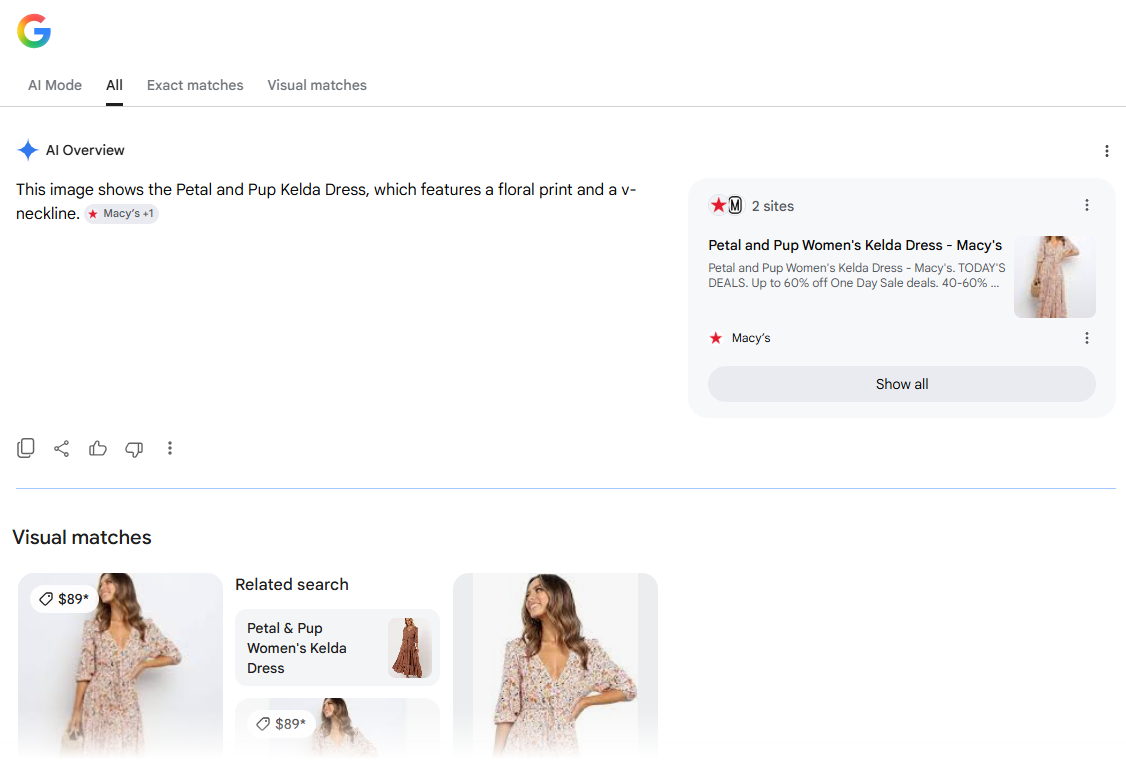
Let us demonstrate to you with an example. We searched for modern dresses on Google, and in return, we got results containing images.
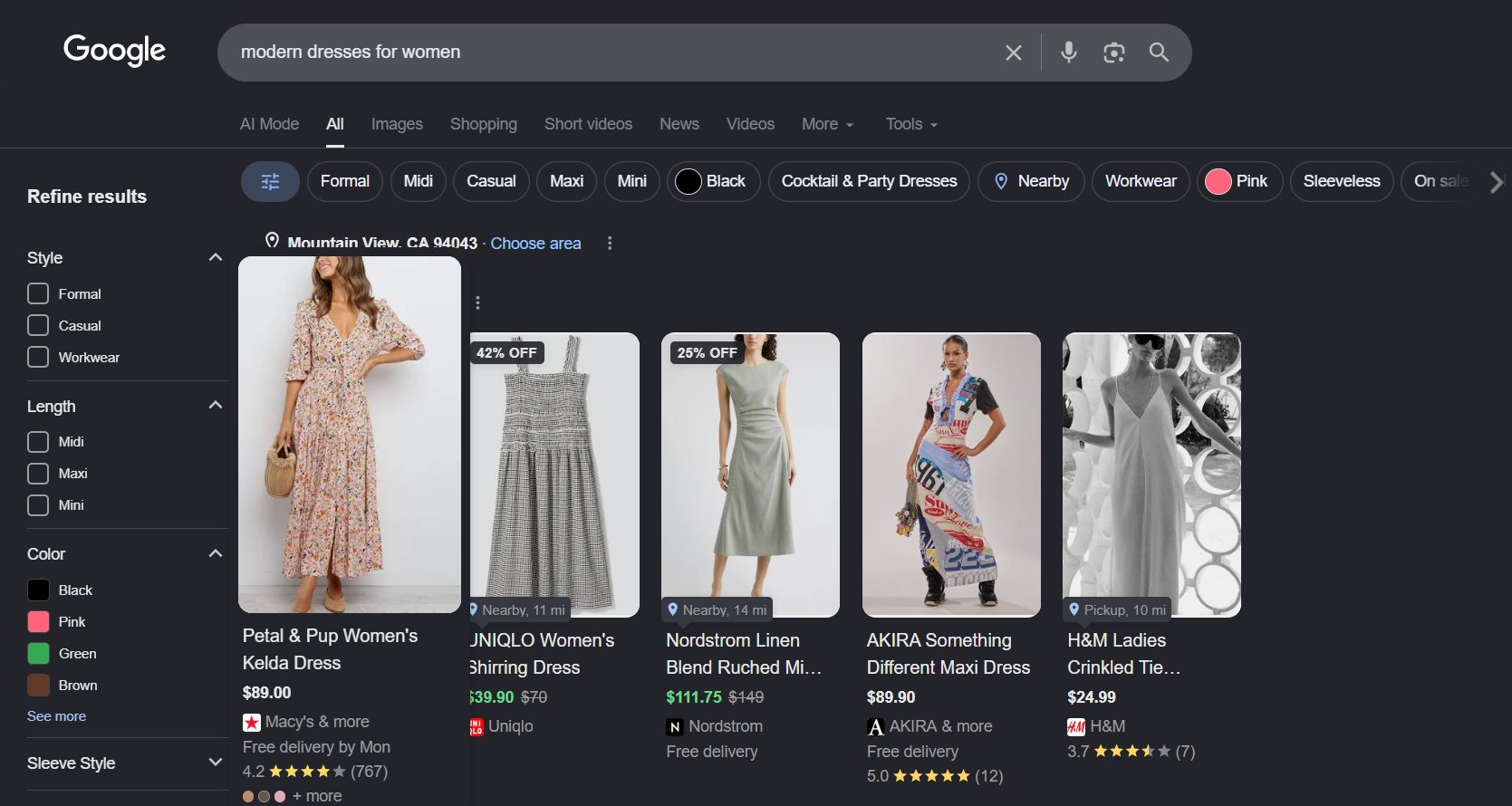
Now, suppose we like the dress in the first image and want to reverse-image search it; the following are the steps.
- Right-click on the image
- Click ‘Search this image with Google Lens’
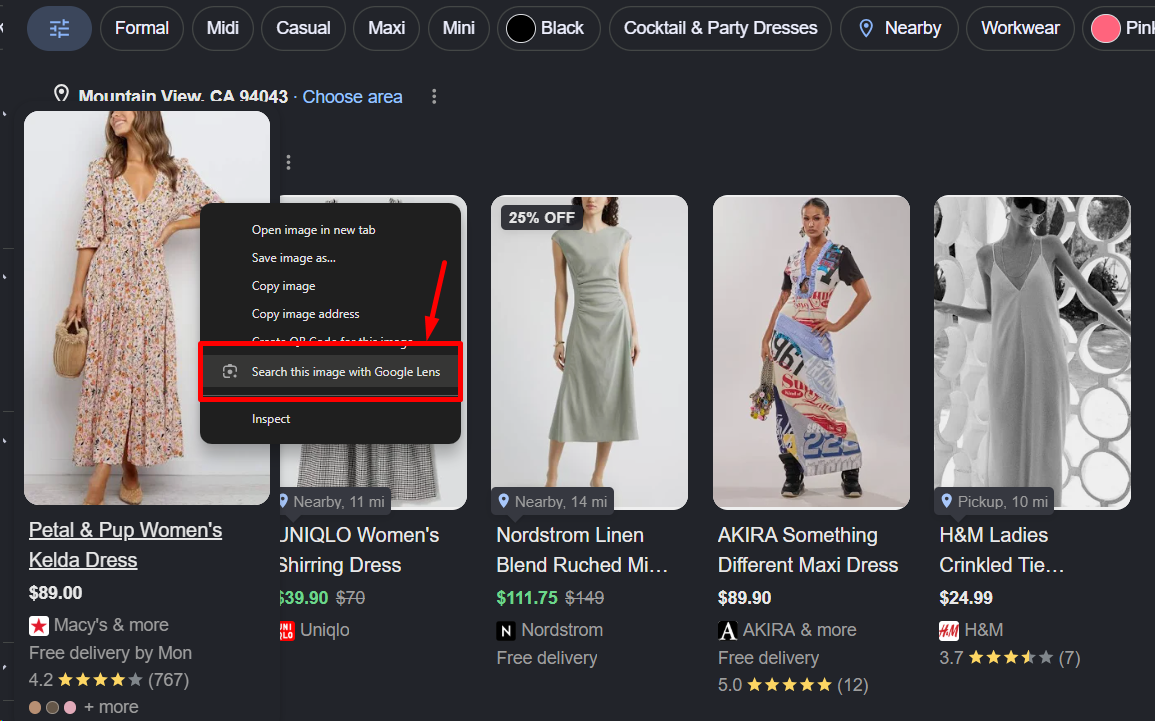
- You will get the image reverse search instantly.
How to do reverse image search on a Webpage?
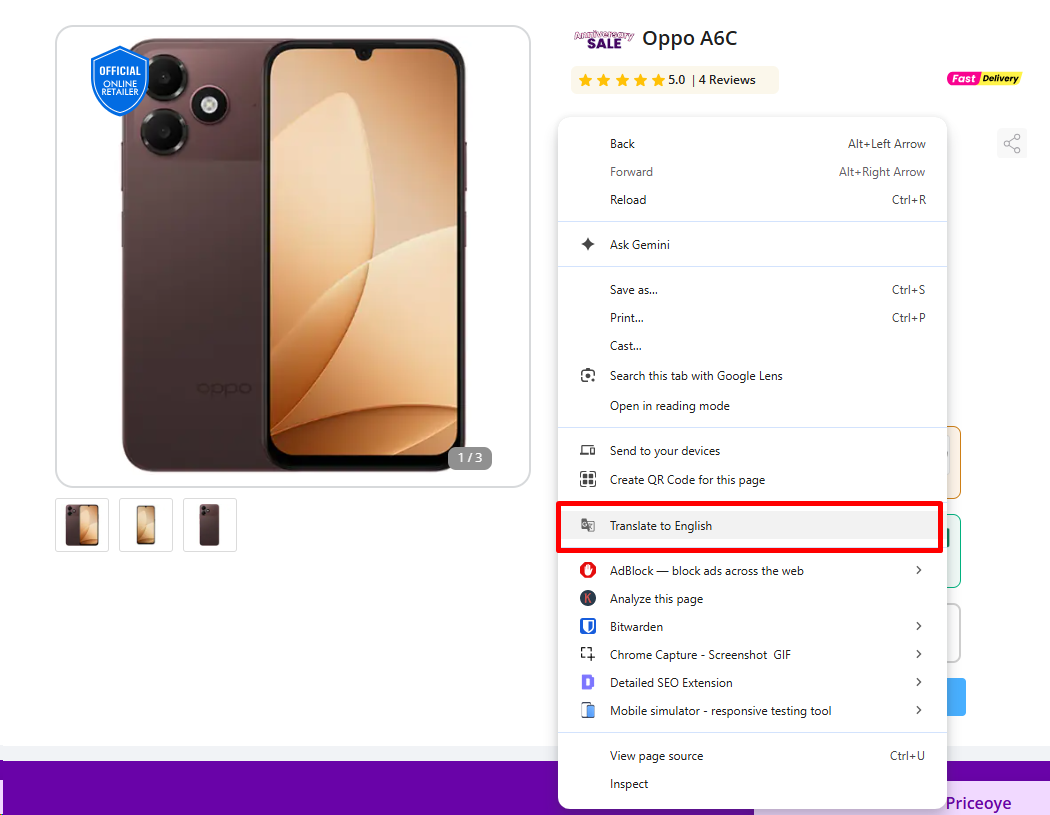
You can also perform a reverse image search directly on a web page opened on Google.
- Right-click on the webpage.
- Click ‘Search this tab with Google Lens’.
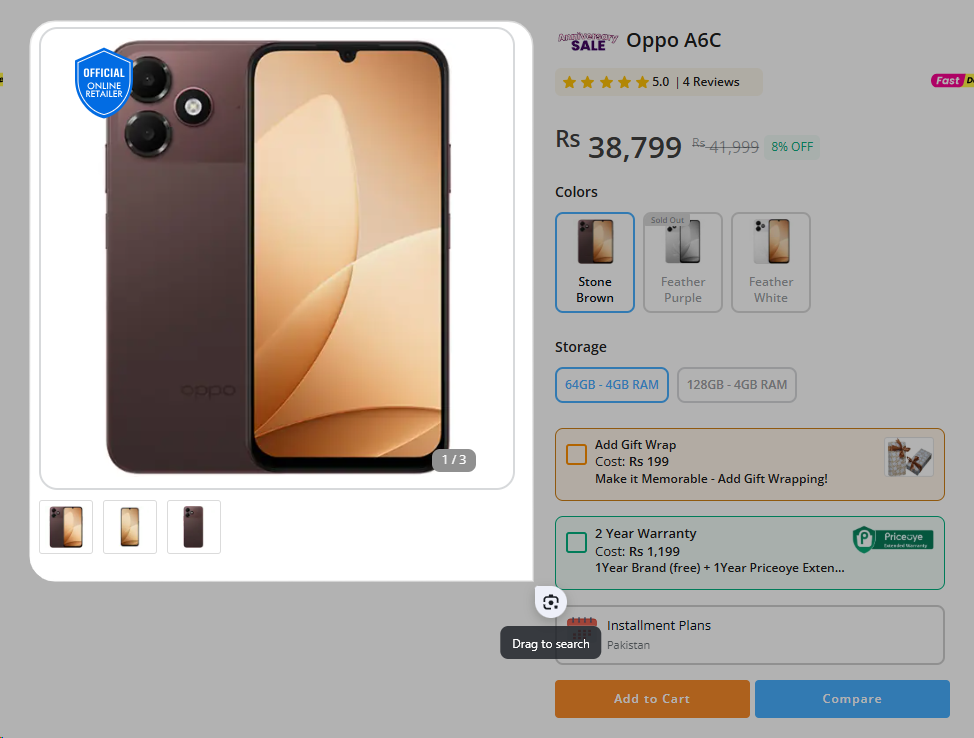
- Drag to select the portion of the web page that you want to search.
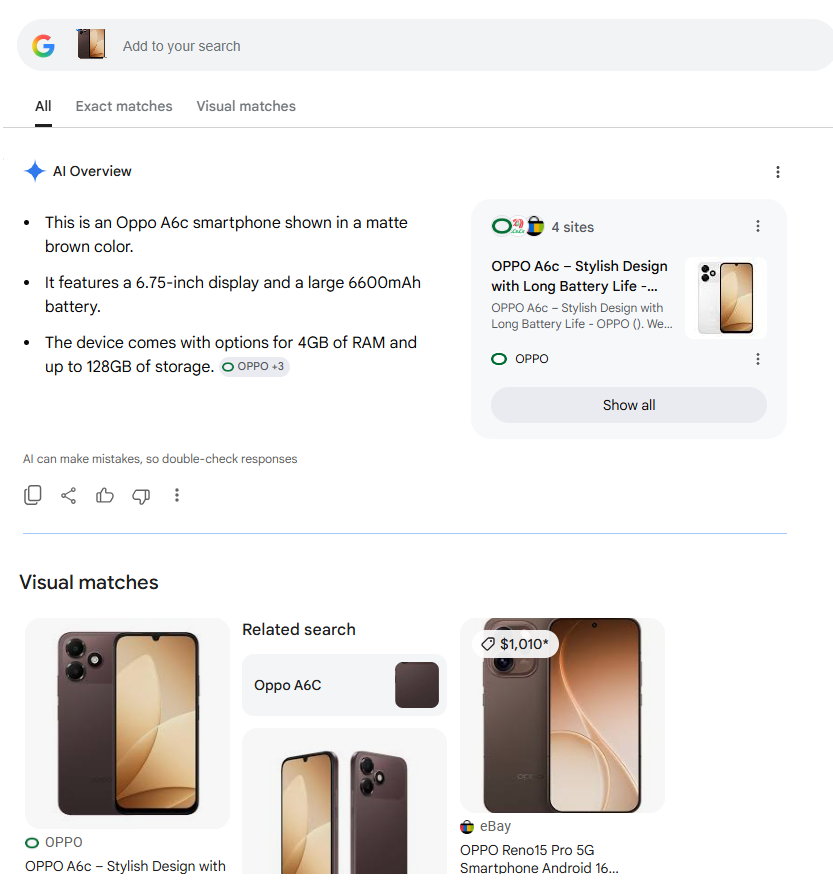
- Google Lens will automatically show you image reverse search results.
How to Do a Reverse Image Search on Mobile?
You can easily perform a reverse image search on Google using your smartphone. Instead of clicking right, you just need to long-tap on the screen, and the rest of the steps remain the same.
Alternatively, you can use an image search tool on your smartphone and perform a reverse image search easily across different search engines from a single place.
- Step 1: Open a web browser on your mobile and go to the reverse image search tool.
- Step 2: Upload your image or add the URL of one in the corresponding field.
- Step 3: Choose an image search engine among Google, Bing, Yandex, or TinEye.
- Step 4: You get the results.
Final Talk
Reverse image search is easy to do. You can use Google Lens or a reverse image search tool to upload an image and find matching results in seconds. This helps you find the original source, discover similar images, identify products, or learn more about a photo. Whether you use a desktop or a mobile phone, the steps remain simple and take only a few moments.