How to Convert PDF to Word Document - Quick & Easy
PDF (Portable Document Format) is a widely used document format. It is especially used for sharing files without altering their layout or formatting. According to an estimate made in 2020, there were 2.5 trillion PDF files in existence at that time. Since then, the number has grown significantly.
The large number of PDFs in use stems from their ability to preserve layout, fonts, and structure across devices. In 2024, PDFs were also flagged as a malicious file type; well, that’s not our focus here. We are here to address a common user query - how to convert a PDF to Word. A conversion may come in need of performing.
What Does It Mean to Convert a PDF to Word?
Converting a PDF to Word means making a non-editable PDF file an editable Word document. Once the conversion is complete, one can edit the document as needed.
Why is a PDF-to-Word conversion needed?
Well, here are some common reasons people need to do this conversion.
- Enables users to edit content easily, as PDFs are difficult to modify.
- Makes reusing content simple. For example, copying parts of a PDF into reports or presentations without breaking.
- Provides formatting flexibility. After conversion, you can adjust layout, fonts, and styles.
- Improves collaboration, as multiple people can easily edit Word files via Google Docs.
Next, let’s talk about how this conversion can be done in practice. For your convenience, we’ll be demonstrating steps separately for mobile and laptop/PC.
How to convert PDF to Word on a laptop or PC?
You can use multiple methods to convert PDF to Word without Adobe. Here, we are going to share the easiest method to convert a PDF to Word online on a laptop/PC.
The quickest and most efficient way to convert a PDF to a Word document is to use our PDF to Word converter. Here’s how you can perform the conversion on a laptop/PC:
Step 1. Submit Your PDF
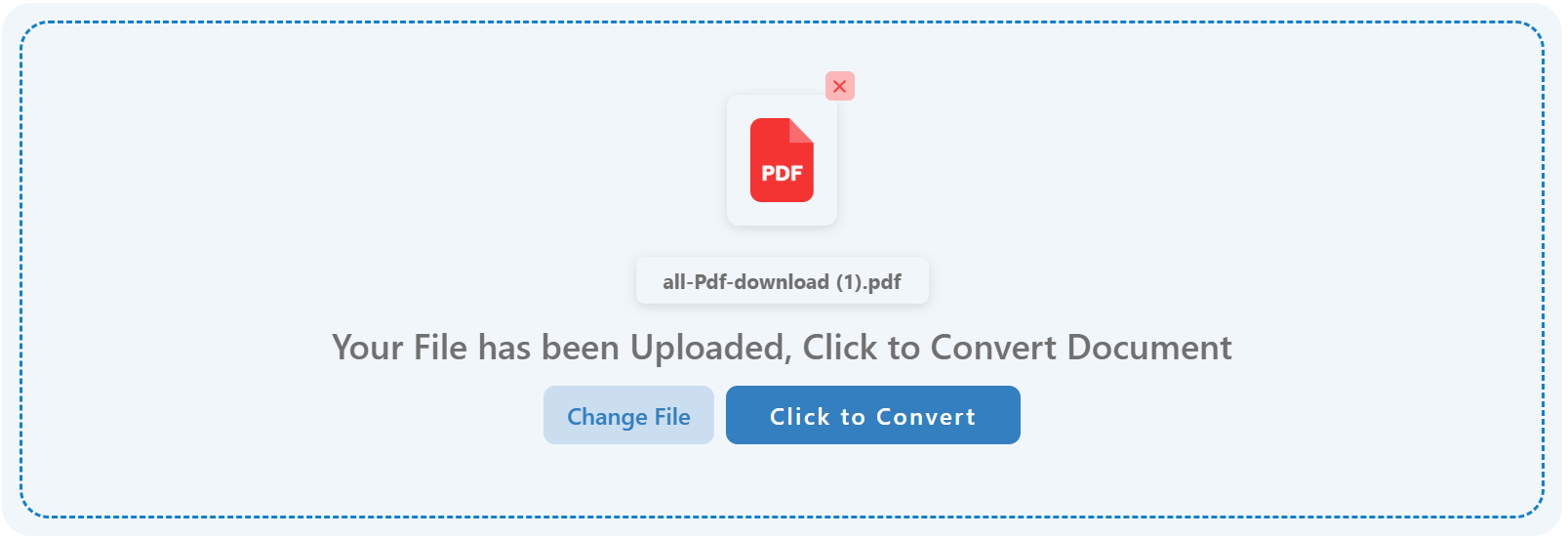
Open our PDF to Word Converter and upload the PDF you want to convert, or drag it into the tool. For demonstration purposes, we have uploaded a random article available in PDF that needs to be converted into an editable DOC file.
Step 2. Initiate Conversion
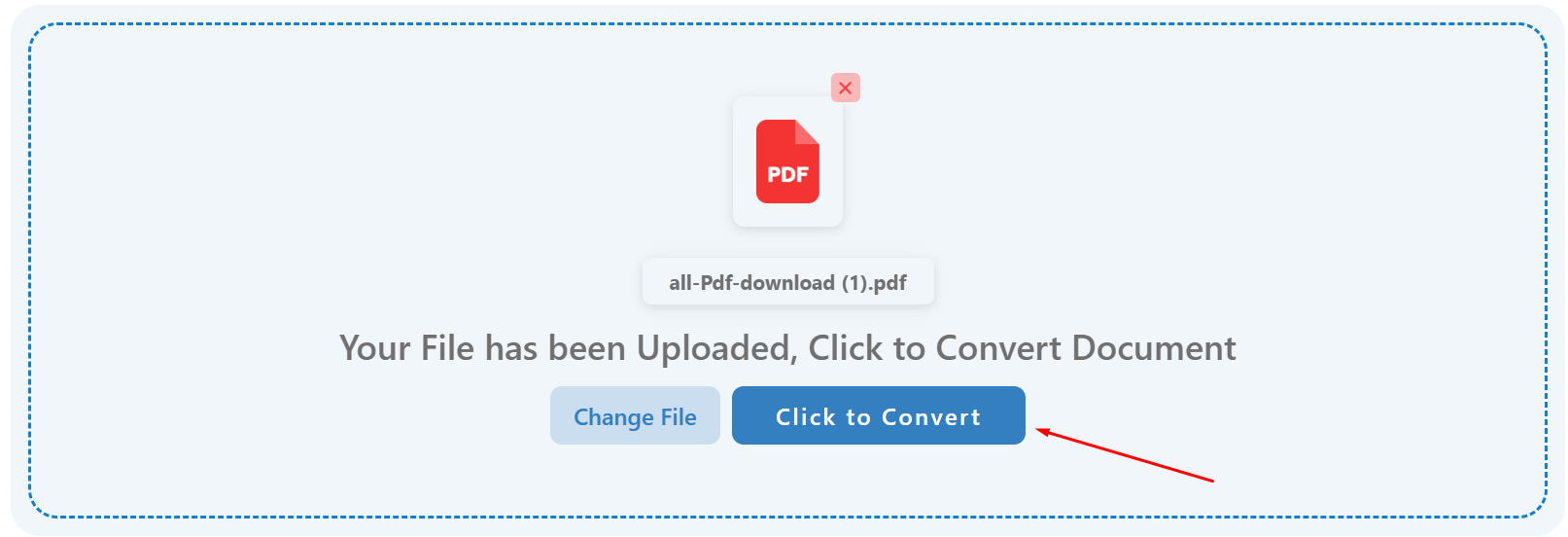
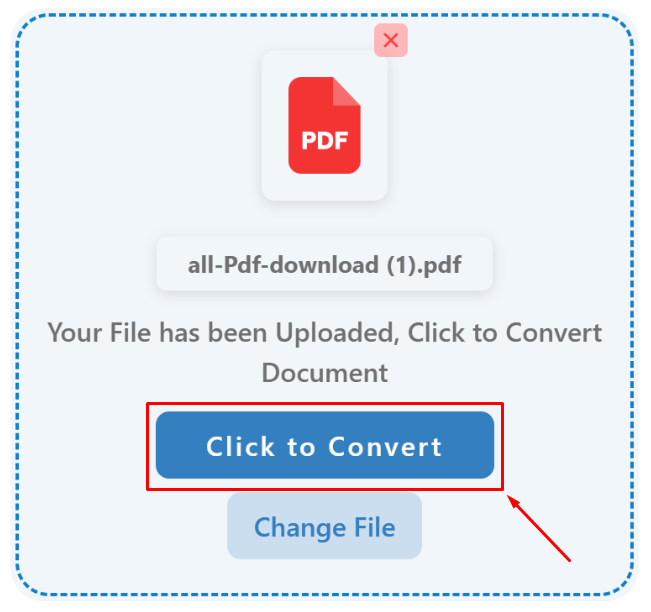
Once the PDF file is uploaded, all you need to do is click the ‘Click to Convert’ button or press ‘Enter’; either initiates the conversion.
Wait for the conversion process to complete.
Step 3. Download Word File
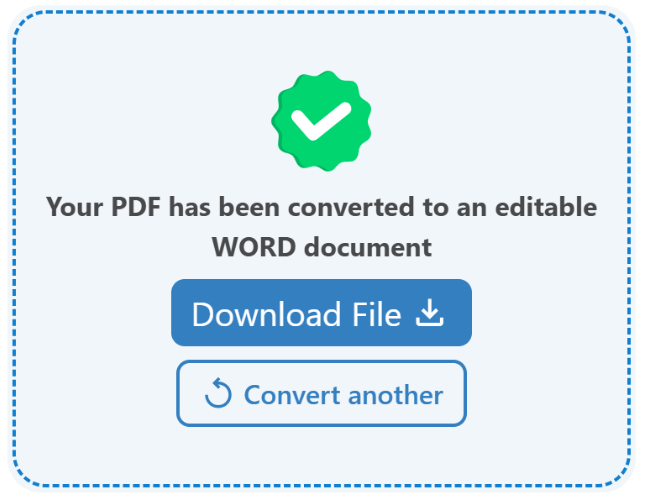
Once the conversion is completed successfully, you will see an output box like the one below. Just click the ‘Download File’ button to save your file as a Word document.
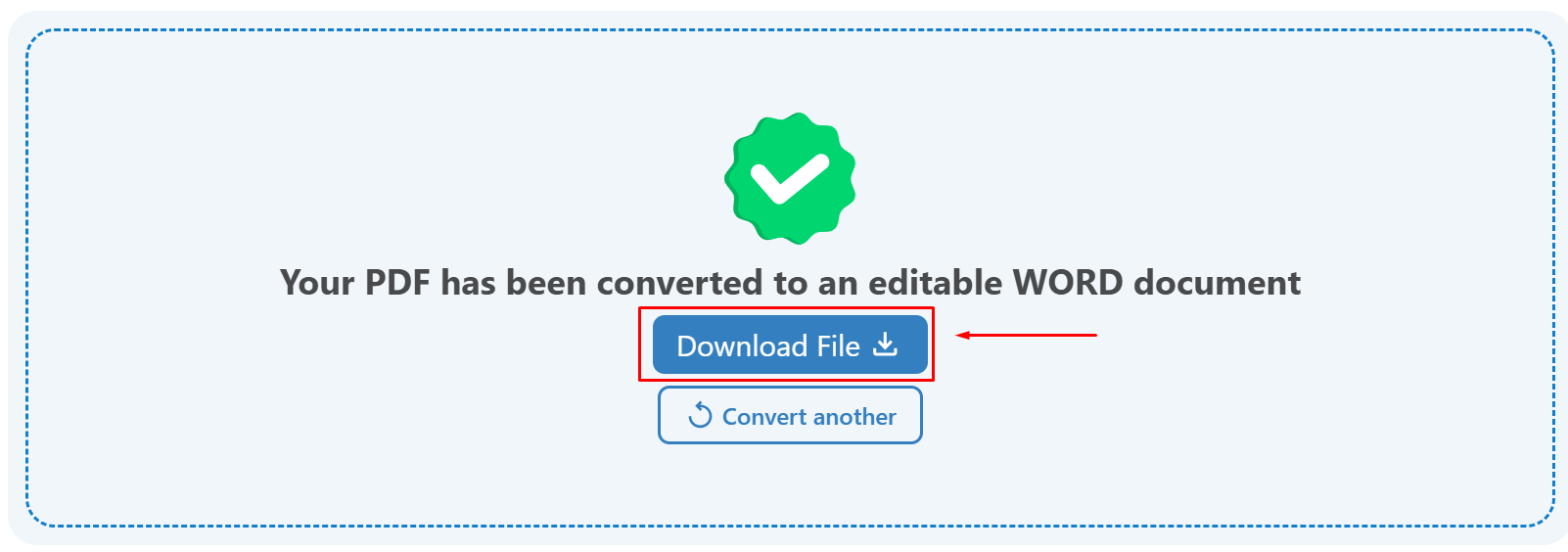
That’s it. Your PDF file will be instantly downloaded as an editable Word document.
How to convert PDF to Word on mobile?
If you want to convert a PDF to Word on a mobile device, there is no need to download or install any app. You can do that with our PDF to Word converter. Steps are similar to those on a desktop, but with just a mobile interface. Still, here’s a little demonstration for you.
Step 1. Submit PDF File
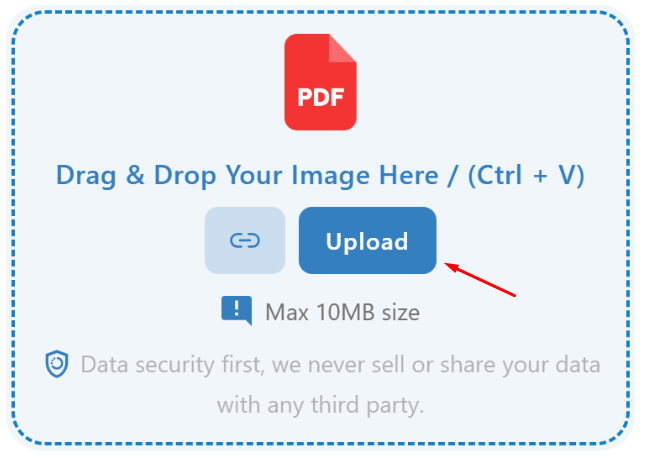
Open a browser on your mobile device and navigate to our website, Imagetotextconverter.net. Next, from the tools list, open our PDF to Word conversion tool.
Once the tool opens, click the upload button and select the PDF file from your device to convert to an editable Word document.
Step 2. Initiate Conversion
After uploading the file, initiate the conversion by clicking ‘Click to Convert’ and let the tool process your file.
Once your conversion is complete, you will see the results and be able to download your converted file.
Step 3. Download Your Word File
Lastly, click the ‘Download File’ button to download your PDF file converted to a Word document.
That is how to convert a PDF to Word on a phone.
How to Convert PDF to Word Offline?
Yet, using a PDF to Word converter is the most efficient way to convert a PDF file into an editable Word document. But there’s one basic necessity of this method - an internet connection. To use the tool online, all you need is a device connected to the internet.
However, sometimes people need to perform the conversion offline because they don't have an internet connection. There is one method for converting a PDF file to a Word file offline. But this method is also dependent on Microsoft Word being installed on your device.
If you have MS Word installed on your device, here’s how you can use it to convert a PDF into an editable Word document.
- Step 1: Right-click on the PDF file.
- Step 2: Hover over ‘Open with’.
- Step 3: Choose ‘Word’ from the installed apps list.
- Step 4: A pop-up telling you about the conversion will appear. Just click ‘Okay.’
- Step 5: Once converted, you will get the PDF file opened as an editable Word file.
Why is using a PDF to Word converter recommended?
As mentioned earlier, multiple methods can be used to convert a PDF file to Word. The most efficient method is to use a PDF converter. Other methods, like MS Word, can also help with the conversion.
Also, Google Drive can be used to turn a PDF file into an editable Word document, but the quality is compromised. In fact, for Google Drive, we can confidently say that the conversion is not that efficient.
That is why if you ask any tech geek how to convert a PDF to Word, their straight answer will be to use a PDF to Word tool. And here are the primary reasons behind that:
- Converts files quickly without manual steps.
- Keeps the original layout unchanged.
- Keeps images in their original places.
- Does not require installing any software.
- Works on any device with a browser.
- Handles large files easily.
- Saves time compared to manual conversion methods.
Bottom Line
Converting a PDF to Word makes documents easy to edit, reuse, and share. Our PDF to Word converter offers the fastest and simplest way to do this without installing any software. It keeps layout, text, and images intact while saving time and effort. Whether you use a laptop or a mobile device, you can make PDF files editable in just a few steps and start editing them instantly.
Frequently Asked Questions
How to open a PDF file in Word?
To open a PDF file in Word, first convert it using a PDF to Word converter. Just upload your file to the tool and click convert. Once converted, download your file and open it as a Word document. It’s that simple.
Is PDF to Word conversion free?
Yes, PDF to Word conversion is completely free. You can use our PDF to Word converter as many times as you want without any usage limits.
Can I convert password-protected PDFs?
No, you cannot convert a password-protected PDF file into Word directly. However, if you have the file password, you can open it and make a duplicate, non-password-protected copy of it, which you can convert to an editable Word file using a PDF to Word converter.