How to Copy Text from Images?
Images shape most of the content we consume today. Approximately half of marketers now add visuals to nearly all their content. Sometimes that content contains important text, which makes it necessary to quickly extract text from images. But the question is, how to copy text from images? This blog post will walk you through several methods for copying text from images.
6 Methods to Copy Text From Images
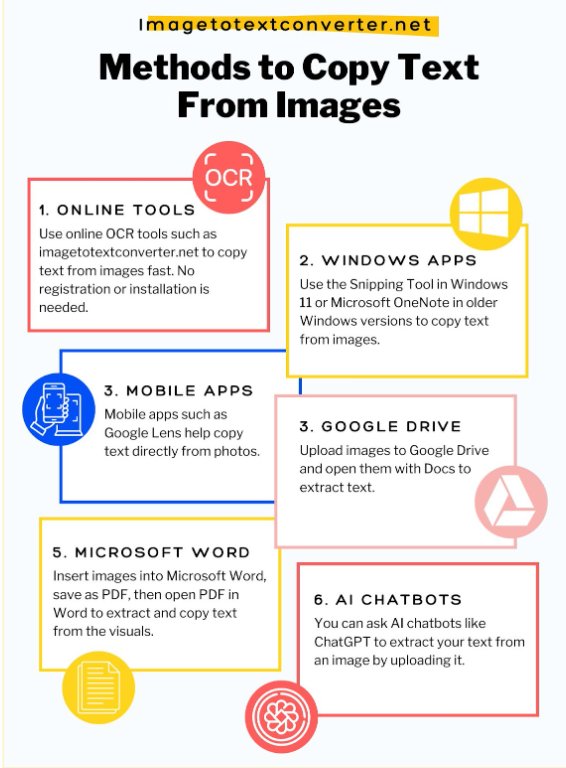
Different methods can be used to copy text from images.
- You can use online OCR tools like Imagetotextconverter.net for instant text extraction on both mobile and desktop devices.
- The Snipping Tool in Windows 11 and Microsoft OneNote in other Windows versions also help copy text from images.
- Mobile apps such as Google Lens also offer to copy text from images.
- Other methods, such as Google Drive and Microsoft Word, also help copy text from visuals.
Method 1: Using Online Tools
One easy method to copy text from images is to use online OCR tools. These tools use optical character recognition (OCR) to extract text from images and let you copy it. The initial steps are the same as those explained in How to Extract Text from Images.
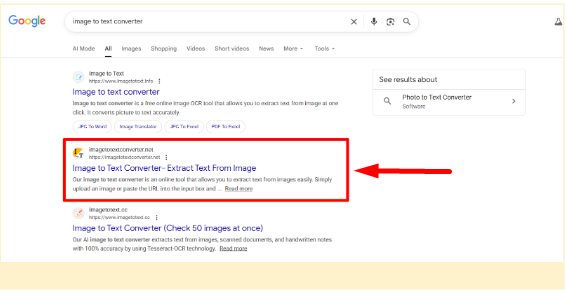
To copy text from an image, open any browser and search for ‘image to text converter’. Next, open Imagetotextconverter.net and upload the image to the tool. After uploading, click ‘Convert to Text’ to display the results. From the result, click the copy icon to copy all text extracted from the image instantly.
Method 2: Using Windows Applications
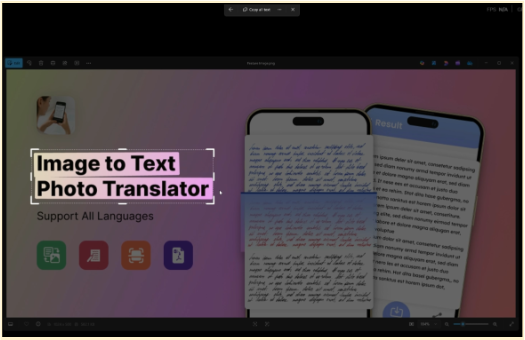
Multiple window applications, such as the Snipping Tool on Windows 11 and Microsoft OneNote, also help you copy text from images.
To copy text from an image using the Windows 11 snipping tool, first open the image. Then press Win + Shift + S and select the area from which you need to copy the text. With selection enabled, click the text actions icon at the top bar and then click ‘Copy all text’. The text from the image will be copied instantly.
You can also use Microsoft OneNote to copy text from photos by uploading them to the application. After uploading, right-click the image and select ‘Copy Text from Picture’.
Method 3: Using Mobile Apps
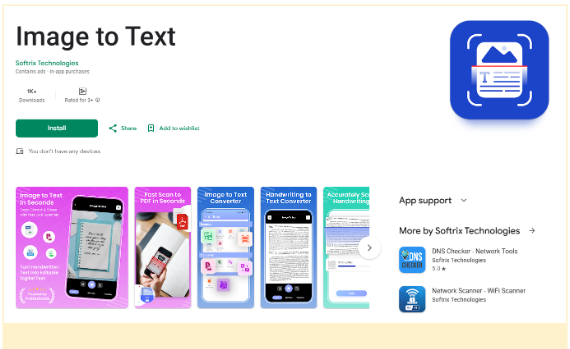
Mobile apps such as Google Lens, Google Photos, and the Image to Text app also allow you to copy text from images. In Google Lens, open the image from your device or capture one in real time by clicking ‘Open camera’, tap ‘Select text’, and lastly click ‘Copy’.
In Google Photos, upload an image, then open it. Click the three dots at the top right, select Open with Google Lens, and finally click ‘Copy’.
In the Image to Text app, upload an image or capture one with your camera. Next, click ‘Scan Text’ and lastly click the copy icon to copy text from the image.
Method 4: Using Google Drive
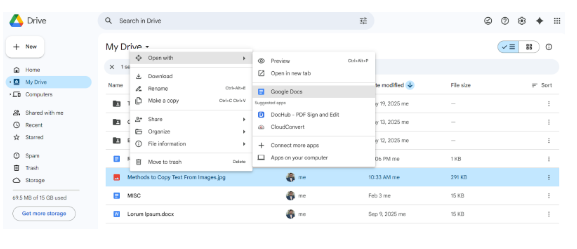
Another way to copy text from photos is to use Google Drive. Upload your image to Google Drive. After uploading, right-click that image and open it with Google Docs. A new document will open, with the image and text separated, so you can copy them easily.
Method 5: Using MS Word
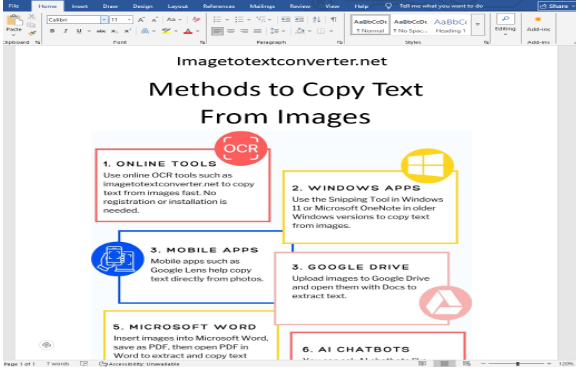
To copy text from pictures, you can also use MS Word. But the process here is a bit lengthier. First, import the image into a new Word document. Then save that document as a PDF. For this, go to File > Save as > Choose folder > Select PDF as ‘Save as type’.
Next, right-click the saved PDF and open it in Microsoft Word. A prompt will appear; click ‘OK’ to extract the text from the image in MS Word, which you can easily copy by selecting it.
Method 6: Using AI Chatbots
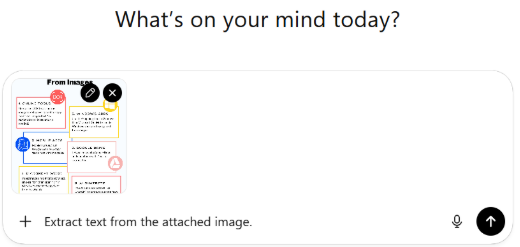
Another method for copying text from images is to use AI chatbots like ChatGPT. Upload your image to the AI chatbot and run the command ‘Extract text from the attached image’. You will get the text extracted from the image. Then copy the text either by clicking the copy icon or by selecting it manually.
Quick Comparison of Image to Text Methods
Each method to copy text from images works differently. Some give cleaner text. Others need more effort. The table below helps you compare all methods quickly.
| Method | Ease of Use | Speed | Works on Mobile | Works on Desktop | Results Quality |
|---|---|---|---|---|---|
| Online | Very Easy | Very Fast | Yes | Yes | Very Good |
| Windows Apps | Easy | Fast | No | Yes | Good |
| Mobile Apps | Very Easy | Fast | Yes | No | Very Good |
| Google Drive | Medium | Medium | No | Yes | Average |
| MS Word | Hard | Low | No | Yes | Low |
| AI Chatbots | Easy | Medium | Yes | Yes | Good |
Our Take
Copying text from images is no longer difficult. Today, many simple methods help you turn image text into editable text. You can use any of the discussed methods to copy text from an image. However, using online OCR tools like Imagetotextconverter.net works best for most users.
And this is not what we claim. If you search for the image to text query on tools like SEMRush, you will find that over a million people worldwide search for an image to text converter each month (screenshot attached below for your reference). The purpose behind it is just to extract and copy text from images.
Why an online image to text tool? Because they are fast, easy, and work on both mobile and desktop devices. Therefore, you should choose the method that fits your device and task. With the right tool, you can save time and work more efficiently.