Best Image Translator in 2026
Images now carry a major share of the information people read and use every day.
But what if the image text is not in a language you can read? It can be a restaurant menu in Spanish, a product label in Chinese, a research chart in German, or a scanned case file in French.
You still need to understand what it says, and that is exactly why you need an AI + OCR-powered image translator.
OCR is primarily used to extract text from an image, right? Well, you can also use OCR to translate the text into another language through the same workflow. Notably, it first converts image-based text into machine-readable content, then passes that content into AI for translation and usable output. Image translation technology uses OCR to digitize text from flat images and scanned files first, so translation software can process it directly afterward.
In fact, OCR adoption continues to accelerate as AI improves how machines read visual text. According to Industry Reports, the OCR market is projected to grow at a 16% compound annual growth rate and reach $39.7 billion by 2030, which clearly shows rising demand for AI-powered text recognition across scanned documents, images, and visual content.
Now, let us guide you about the 5 best image translator tools, which smartly use the power of OCR and AI to simplify the way you switch from one language to another.
What is Image Translation?
In the simplest terms, image translation is the process of converting visual text into a language you can read.
Notably, OCR image translation uses AI to detect, understand, and translate text directly within an image while preserving its visual structure. Students, office professionals, and content marketers rely on AI image translation tools to translate visual content that standard text translators cannot process directly.
Here’s how the image translation process typically goes:
- The process starts when an image containing visible text is uploaded, such as a sign, menu, poster, document, or screenshot.
- AI prepares the image by improving clarity, correcting distortion, reducing noise, and sharpening text areas for more accurate recognition.
- OCR technology scans the image and detects text regions by identifying characters, words, and lines within the visual layout.
- AI-powered recognition reads the detected text and understands the source language, script, and sentence structure.
- The system interprets context, meaning, and terminology so the translated result reflects the intended message rather than direct word substitution.
- AI generates the translated text in the selected target language while preserving tone, readability, and linguistic accuracy.
- The translated text is then reinserted into the image in its original position, aligned to the surrounding layout, spacing, and visual hierarchy.
- The final output is a visually translated image where the original text is replaced with translated content in the same on-image format.
However, image translation quality often varies from tool to tool, since each system handles image clarity, layout complexity, text density, language pairs, and translated text reconstruction at a different level of accuracy. In many cases, not every tool preserves formatting, spacing, and visual alignment with the same degree of precision, so the final result often depends on how effectively the system rebuilds translated content within the original image layout.
How to Translate Text from an Image?
Image translation usually follows the OCR and AI route, though the exact process can shift based on image type, layout complexity, and output needs.
Most image translation tools use AI-powered OCR to detect and extract text from screenshots, scanned pages, menus, labels, and standard visuals. However, some tools also use image segmentation to break complex layouts into smaller text regions, which improves accuracy for diagrams, infographics, and mixed-format visuals.
In fact, there are other tools available, which apply contextual localization to interpret text alongside icons, product shapes, and surrounding visual cues. It improves translation quality for marketing creatives, packaging, and e-commerce content.
So while the workflow can vary by image language translation tool, the overall process follows the same path: from image input to text extraction, translation, and a reusable output.
Step 1: Upload or Capture the Image
Start by uploading the image you want to translate. You can use a screenshot, a camera photo, a lecture slide, a menu, a brochure, a product label, a diagram, or a scanned document.
Notably, most image translation tools support JPG, JPEG, PNG, WEBP, and other scanned image formats.
Step 2: Select the Translation Language
Once the image is uploaded, specify the language settings for translation. The tool is very likely to auto-detect the language in which the image text is written. However, if it doesn’t, you’ll have to set both the source and target languages manually.
Step 3: Detect and Extract the Text
After the language pair is set, the image translator scans the visual, identifies text regions, separates text from backgrounds and design elements, and converts visible words into readable text.
As covered earlier, image translation may rely on OCR, image segmentation, or contextual localization. The exact process depends on image type, layout complexity, and output needs. Therefore, it is important to choose the right image translator to achieve higher extraction accuracy.
Step 4: Translate the Content
Once extraction is complete, the image language translator processes the text in the selected target language. At this stage, the system reads sentence structure, understands phrasing, and translates the content into readable output.
Step 5: Copy, Download, or Reuse the Output
Once translation is complete, the output is ready to use. You can copy the translated text, download the result, or reuse it across notes, reports, product listings, presentations, and multilingual content workflows.
5 Best Image Translator Tools in 2026
Now, let us walk you through the top 5 image translation tools that we tried and tested for your convenience.
Imagetotextconverter.net’s Image Translator
Before we get into the details, let’s be clear on one thing. Imagetotextconverter.net offers you a feature-packed image translator tool, purpose-built for both academic and professional visual data translation needs.
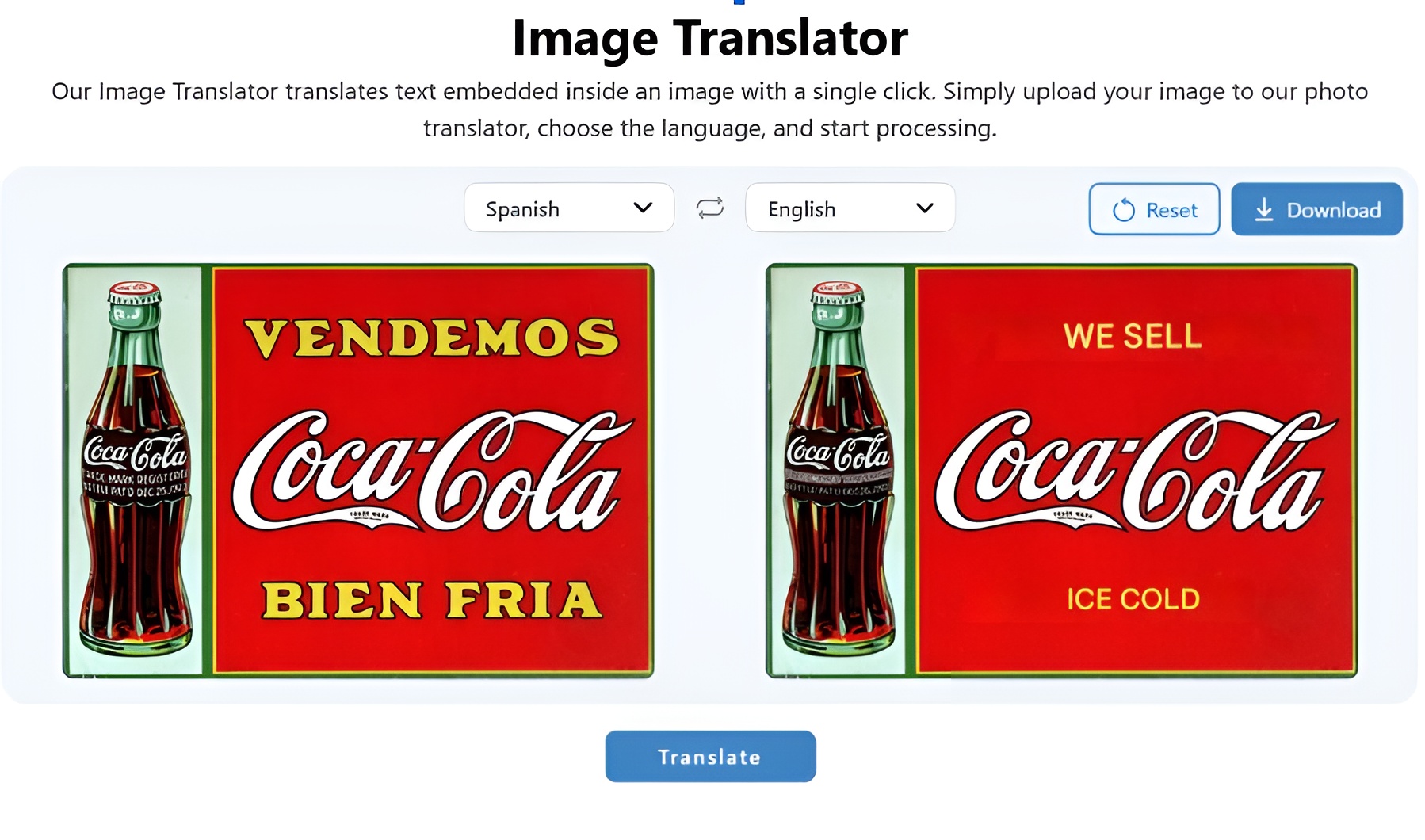
It leverages AI-powered OCR and machine learning to detect embedded text, interpret context, and convert image-based content into accurate translated output with minimal effort.
Key features and functionalities:
- AI-powered OCR for accurate text extraction
- machine learning for context-aware translation
- image translation in 100+ languages
- browser-based access across mobile, tablet, and desktop
- drag and drop, copy-paste, file upload, and image URL input
- support for PNG, JPG, JPEG, WEBP, BMP, HEIC, and HEIF
- file supports up to 10 MB
- fast image-to-text translation in seconds
- copy or download translated output
- free usage with no sign-up or subscription
- No strict daily limits under normal usage conditions
- Files are typically processed securely with temporary storage policies.
How to use it properly?
To translate image text accurately, just upload the image and let the tool process it first. The image translator automatically detects the source language from the uploaded image. If the detected language appears incorrect, you can adjust it manually by selecting the correct source language. Then choose the language you want the content translated into, click Translate, and let the tool process the image accordingly.
Once the translation is complete, you can review the result, copy the translated text, or download the translated output for reuse.
It is worth noting that imagetotextconverter.net’s all tools, including the image translator, are readily accessible across desktop and mobile. The browser-based setup keeps the workflow simple on both, so you can translate image text just as easily from a laptop, tablet, or phone without switching platforms, installing extra software, or relying on device-specific access.
Google Translate
Google Translate is one of the most widely used image translator tools in 2026, especially for quick image translation on mobile and desktop. It supports image uploads through the Images tab on the web and camera-based image translation on mobile, which makes it a familiar option for users who need to translate signs, menus, labels, handwritten notes, and simple visual text on the go.
Key features and functionalities:
- image translation on web and mobile
- real-time camera translation on mobile
- image upload through Google Translate Images tab
- automatic source language detection
- manual source and target language selection
- support for handwritten and printed text
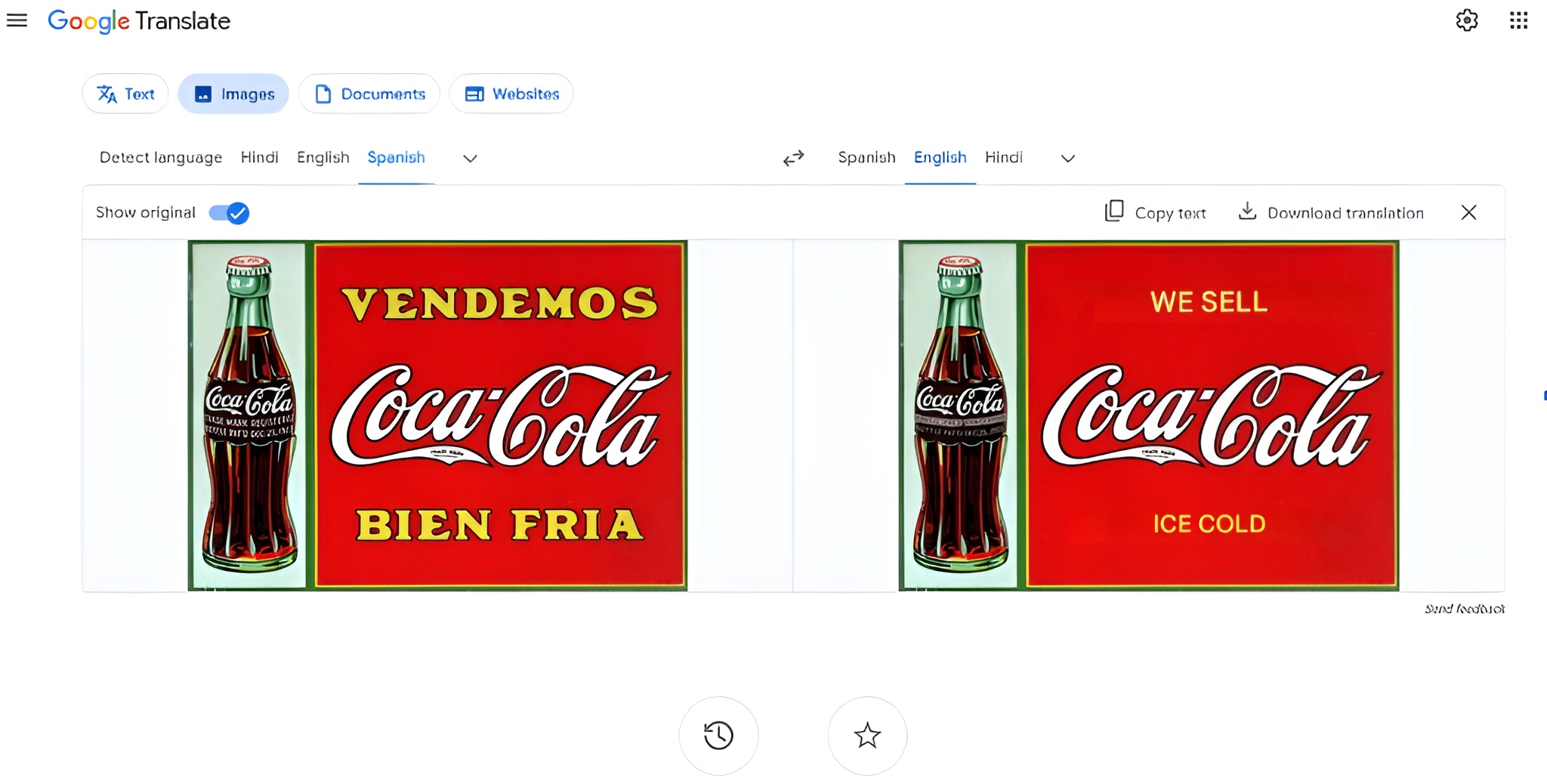
- side-by-side translated image preview
- show original image toggle
- copy translated text
- download translated image
- translation history and saved translations
- broad multilingual support
How to use it properly?
Open Google Translate and switch to the Images tab. Upload the image you want to translate, then review the language settings before processing. It is worth noting that Google Translate can auto-detect the source language, though the detected language may not always be correct, especially with short text, mixed scripts, or stylized visuals. Google Translate can also prefill the target language based on your recent translation history or saved language preferences. So before you run the translation, double-check the source and target language settings after uploading the image and correct them manually if needed.
Once the language pair is set, Google Translate scans the image, translates the visible text, and returns a side-by-side preview of the translation. You can then copy the translated text, download the translated image, or save the result for later use.
Google Translate is best suited for travelers, casual users, and mobile-first translation needs involving signs, menus, labels, and quick, everyday image text.
Microsoft Translator
Microsoft Translator works best for users who need image translation directly within office workflows, especially for mobile documents, PDFs, and Microsoft 365 content.
Notably, Microsoft integrates image translation into its Office Mobile App via Deep-scan, allowing users to translate text in images, PDFs, captured documents, and saved files without leaving the broader Microsoft workflow. Well, this makes it a practical option for document-heavy image translation, especially if your goal is to review, copy, share, or reuse translated text across work files.
Key features and functionalities:
- image translation through Microsoft 365 Office Mobile App
- Deep-scan for text and visual content extraction
- support for image, PDF, and captured document translation
- translation across existing images and live camera input
- copy, share, search, and reuse translated text
- translation inside Office Mobile workflows
- Microsoft integration across Word, Excel, PowerPoint, and Outlook
- support for offline language packs on mobile
- phrasebook and speech support
- mobile-first document translation workflow
How to use it properly?
Open the Microsoft 365 Office Mobile App and load the image, scanned file, or PDF you want to translate. Start Deep-scan, highlight the text area you need, then choose Translate from the available actions. Review the target language, make any necessary changes, and let Microsoft Translator process the selected content. Once the translation is ready, you can copy, share, search for, or reuse the translated text directly within your document workflow.
NoteGPT AI Image Translator
NoteGPT AI Image Translator is a practical option for users who need image translation with side-by-side comparison. It combines OCR and machine translation in a simple browser-based workflow, then presents the original and translated output side by side for quick review. Notably, the comparison-first layout makes it useful for users who need to verify phrasing, check context, and compare translated image text before reuse.
Key features and functionalities:
- AI image translation with OCR and machine translation
- side-by-side original and translated view
- support for 100+ languages
- image upload for JPG, PNG, and PDF
- Compare and review the translated output
- copy translated text
- download translated result
- browser-based access
- simple three-step workflow
- built for quick review and comparison of use cases
How to use it properly?
Upload the image you want to translate, then choose the target language. NoteGPT processes the image, extracts the text, and returns a side-by-side comparison view with the original on one side and the translated output on the other.
Review both panels carefully, compare phrasing, then copy or download the result once the translation looks accurate.
Yandex Translate
Yandex image Translator is particularly effective for multilingual text, especially across Cyrillic, Slavic, and Turkic language pairs. It uses neural machine translation, supports image translation across web and mobile, and performs especially well with Russian, Ukrainian, Turkish, Kazakh, and similar language combinations.
It is a practical option for users who work with multilingual image content beyond standard English-first translation flows.
Key features and functionalities:
- image translation on web and mobile
- neural machine translation for context-aware output
- support for 100+ languages
- strong Cyrillic, Slavic, and Turkic language handling
- automatic source language detection
- manual source and target language selection
- built-in dictionary with pronunciation and examples
- document and webpage translation
- offline language packs
- image translation through the camera and uploads
- translation history controls and incognito mode
How to use it properly?
Open Yandex Translate and upload the image you want to translate, or use the camera option on mobile. Review the detected source language first, then confirm the target language before processing. Once the language pair is set, run the translation, review the extracted output, and then copy or reuse the translated text as needed. The built-in dictionary also helps when you need pronunciation, examples, or better word-level clarity.
How to Choose the Right Image Language Translator for Your Use Case?
The right image language translator depends less on brand familiarity and more on what kind of image content you need to process, what output you expect, and how much accuracy the task actually requires. A travel sign, scanned report, product label, research chart, and marketing visual all move through different image translation demands. Some tools work better for quick text extraction. Others perform better with layout-heavy visuals, multilingual documents, or reusable translated output. So before choosing any image translator, define the image type, expected output, and actual use case first.
Choose the right image language translator based on:
- Image type support for screenshots, scanned files, labels, diagrams, PDFs, or design-heavy visuals
- AI-powered OCR accuracy for small text, low-quality scans, glare, blur, and mixed layouts
- Source and target language support for the language pairs you actually need
- Output type, whether you need copyable translated text or reusable translated image output
- Layout handling for charts, infographics, brochures, packaging, and branded visuals
- Translation quality for context, phrasing, terminology, and sentence accuracy
- Manual language controls when auto-detection fails or mixed-language input appears
- Export options such as copy text, download output, translated image, or document reuse
- Mobile and desktop accessibility based on how and where you translate most often
- Privacy handling for sensitive files, reports, contracts, and internal documents
- Batch support for multi-image workflows, repeated files, or larger translation sets
- Glossary or terminology control for academic, technical, product, or business-specific language
- Review workflow if you need side-by-side comparison, proofreading, or validation before reuse
For example, if you are a law student and need to translate scanned case files, legal excerpts, and reference material on a regular basis, it makes more sense to rely on a browser-based image translator with stronger OCR, cleaner text extraction, and reusable output than a mobile-first app built mainly for quick travel translation.
Factors That Affect Image Translation Accuracy
| Limitation | What It Means in Practice |
|---|---|
| low image quality | Blurry photos, poor lighting, glare, and low-resolution screenshots reduce text detection accuracy and weaken translation quality. |
| stylized or decorative fonts | Curved text, handwritten notes, artistic fonts, and non-standard typography often reduce OCR accuracy. |
| mixed-language input | Images with multiple languages in one frame can confuse source language detection and affect translation accuracy. |
| complex layouts | Charts, tables, brochures, diagrams, and multi-column visuals can disrupt reading order and text extraction flow. |
| text expansion after translation | Some translated languages require more space, which can affect readability inside labels, diagrams, buttons, and fixed layouts. |
| context sensitivity | Short phrases, isolated labels, and incomplete text often lose meaning without enough surrounding context. |
| terminology control | Technical, legal, medical, or academic terminology often needs glossary support, AI-assisted review, or manual correction for consistency. |
| weak layout preservation | Many tools extract and translate text accurately, though the final output may lose original formatting, spacing, or visual structure. |
| automation limits | AI agents improve speed and scale, though output quality still depends on source clarity, layout complexity, and review depth. |
Final Words
The best image translator tools include Imagetotextconverter.net, Google Translate, Microsoft Translator, NoteGPT, and Yandex Translate. Each offers a different advantage based on the use case, whether you need browser-based academic translation, quick mobile access, document-heavy office support, side-by-side comparison, or stronger multilingual image translation.
However, it is important for you to evaluate the image type, language pair, output format, and review needs before selecting an image translation tool for regular use. Or else, weak text extraction, inaccurate translation, and unusable output can slow down your entire workflow.